AfterNight Documentation
Purpose, audience, prerequisites, and expected result
This is the entry point for the AfterNight 1.0.0 desktop-application guide. It is for new users choosing a first task and experienced users looking for an interface, process, workflow, or reference page. No image or configured external tool is required to use the guide. Follow one of the paths below and you should arrive at a page that names its inputs, prerequisites, actions, outputs, and current limitations.
The guide covers the packaged Windows and Linux desktop application. The
packages also carry AfterNightCLI, a command-line tool that reads one image,
stretches it for display and writes the result
(AfterNightCLI [options] <input> <output>); this guide does not document it.
Run AfterNightCLI --help for its options and exit codes.
Work in progress
This user guide is still being written. Many features and pages are not finished yet, and documented behavior may change as AfterNight develops. Treat this guide as a helpful preview and verify important workflows in the application.
Reachability and availability
| Item | Current behavior |
|---|---|
| Path | Open the published or bundled guide root; in AfterNight use Help > User Guide, dashboard User Guide (F1), or F1. |
| Enabled/visible when | The guide itself is always navigable. In-app Help first needs a readable bundled index.html; otherwise it tries the published guide unless online fallback is disabled by policy. |
| Supported inputs/state | No active image, sequence, project, mask, or catalog is required. |
| Outputs/side effects | Navigation only. Opening Help asks the operating system to open local HTML or the online URL; it does not modify image data or application settings. |
| Persistence | None on this page. Browser history/bookmarks are outside AfterNight. |
| External dependencies | A browser or other HTML handler; network access only when bundled documentation is unavailable and online fallback is allowed. |
Before you start
Confirm the application version in About > About AfterNight when exact behavior matters. This guide covers 1.0.0. Keep a writable output folder and copies of acquisition data before following any processing workflow; individual pages identify their additional disk, catalog, model, or external-tool needs.
AfterNight 1.0.0 user guide
Process, refine, and finish your astronomical images
AfterNight gathers the pieces of a deep-sky processing session into one application workspace: calibration frames, registration, stacking, color work, stretching, masks, process windows, logs, history, automation, and extensions.
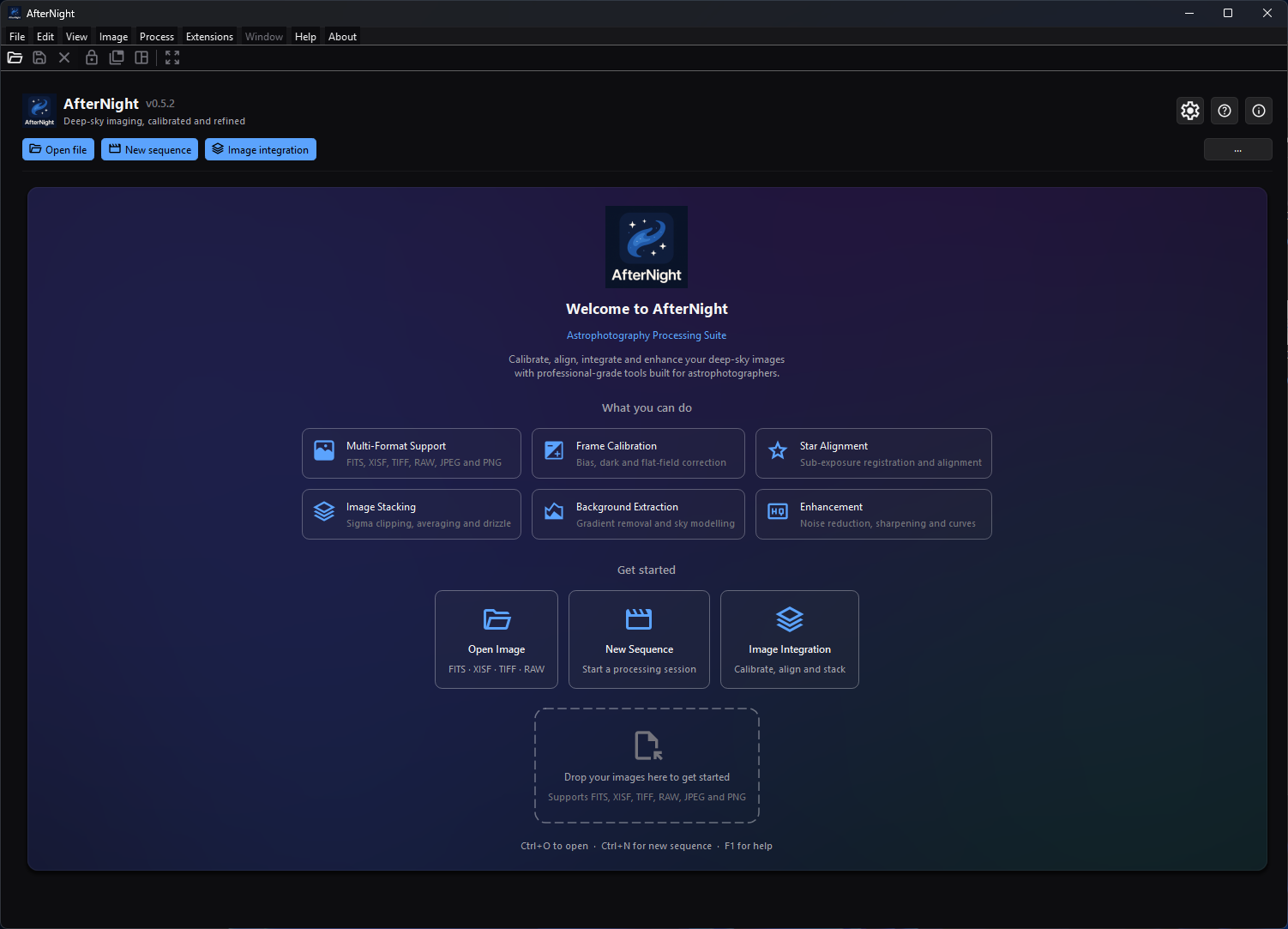
Start from the fresh-profile Dashboard to open images, begin an integration, or review the guided first steps.
Use this guide in the same order you work. Start with installation and first launch when the application is new, use the interface pages to find your way around the workspace, then jump into a workflow or process reference when you need the next processing step.
Process pages focus on what is visible in the app: required inputs, important controls, expected outputs, where files are written, and what to check when a result looks wrong.
Procedure
Choose your path
Key capabilities
🌌 Astronomy images and sequences
Open astronomy and interchange images, camera RAW input, native sequences, and supported FFmpeg-backed video streams. Begin with Supported Formats; use File Formats as the single authority for exact read, write, precision, compression, sequence, and metadata behavior.
🔭 Precision Registration & Astrometry
Align images with sub-pixel accuracy. AfterNight features automatic star detection, projective geometric transforms, and full support for SIP (Simple Imaging Polynomial) distortion correction. Resolve celestial coordinates using Plate Solving to enable WCS-aware alignment and color calibration.
⚙️ Flagship Image Integration
Automate your pre-processing pipeline from raw frames to master stacks. The flagship Image Integration workflow handles dark optimization, cosmetic correction, flat normalization, registration, outlier rejection stacking, and high-resolution Drizzle. Track progress with interactive steps and detailed HTML reports.
🎨 Non-Linear Finishing & Compositing
Sculpt the visible image after stretching with contrast, color, star, mask, and compositing tools. Shape details with phase-appropriate noise reduction, sharpening, deconvolution, Pixel Math, and custom Masks so finishing edits stay targeted.
Behavior and state model
Typical deep-sky flow
The processing of deep-sky astronomical images follows a rigorous sequence to transition raw sensor data into a finalized, high-fidelity image. This journey is divided into two distinct phases:
The Linear Phase (Pre-processing)
During this phase, pixel values remain directly proportional to the physical photon counts captured by your sensor. Calibration, registration, stacking, background or gradient correction, color calibration, and some denoise or deconvolution workflows are usually performed while the data is still linear.
The Non-Linear Phase (Post-processing)
After the image is stretched with Histogram, GHT, or other tone tools, the data is no longer linear and the goal shifts toward visible detail, contrast, color, stars, and export. Noise reduction and deconvolution can still be useful here, but they are handled with tools and settings intended for non-linear data.
Linear phase
- Calibration
- Registration
- Stacking & Drizzle
- Background Extraction
- Color Calibration
- Linear Denoise / Deconvolution
Non-linear phase
- Stretching
- Curves & Contrast
- Non-linear Denoise
- Sharpen / Deconvolution
- Stars & Export
The guide is organized around that flow. If you are new to the application, start with Quick Start Tutorial. If you already know the data you need to process, jump directly to the Process Catalog.
Complete control and action reference
The landing page has navigation actions rather than image-processing controls. Each link changes only the displayed documentation page.
Guide at a glance
| Need | Start here | Best next page |
|---|---|---|
| Install the app | Installation | First Launch |
| Navigate the workspace | Interface Overview | Image Viewer |
| Pre-process & stack images | Image Integration | Image Stacking |
| Master the workflows | Broadband Imaging | Narrowband Imaging |
| Explore individual tools | Process Catalog | Glossary |
| Add extension tools | Using Extensions | Extension Marketplace |
About this guide
This guide targets AfterNight 1.0.0 and focuses on using the application. For supported platforms, disk space, and hardware guidance, see System Requirements.
Inputs, outputs, and metadata
This page consumes no image input and creates no view, file, history item, or metadata change. The processing pages it links to distinguish source images from new result views and state when they write files, preserve metadata, or append history. Keep FITS, XISF, or another suitable high-precision master until the authoritative File Formats page confirms that a chosen output preserves what the next step needs.
Performance and responsiveness
The page is static HTML. Opening the bundled guide avoids network access; opening the published guide depends on the browser and connection. Image, catalog, model, memory, and processing costs belong to the linked task pages and are not implied by this landing page.
Worked example
- Evidence mode: Source-and-documentation-derived.
- Starting state: AfterNight 1.0.0 is installed and no image is open.
- Actions: open Help > User Guide, choose Run the quick start, follow the OSC or mono branch, then use the linked saving page to verify an output.
- Checkpoints: the guide root opens locally when bundled; Quick Start identifies the branch before processing; every major step links to its detailed process; the final step reopens the saved artifact.
- Limitation: this navigation example verifies the documented route, not image quality, runtime, or compatibility with a particular camera dataset.
Warnings and limitations
- The version number is a review boundary, not a promise that every later build behaves identically. Recheck a page against the application after a product change.
- Display autostretch changes only what is shown; it does not make linear pixel data nonlinear. Processing pages call out the point where a real stretch is applied.
- Do not treat JPEG or delivery video as the only processing master. Confirm precision and metadata behavior in the authoritative format reference.
- Media additions or replacements remain governed by the media manifest/provenance workflow.
Troubleshooting
| Symptom or exact error | Verified cause/enablement path | Recovery | Evidence source |
|---|---|---|---|
| Help > User Guide opens the online guide | No readable bundled candidate was opened and online fallback is allowed. | Use the online guide, or install/build the bundled documentation artifact. | DialogOrchestrationCoordinator.cpp; packaging scripts |
| “The offline AfterNight User Guide could not be opened, and online fallback is disabled by policy.” | No bundled candidate opened and AFTERNIGHT_DISABLE_ONLINE_USER_GUIDE disables fallback. |
Restore the packaged {app}/docs/index.html on Windows or usr/share/doc/AfterNight/index.html inside the AppImage on Linux, then retry. |
DialogOrchestrationCoordinator.h/.cpp; focused test |
| A capability or label differs from the application | The page may describe another version. | Check the application version, then use the current process/reference page and report the mismatch. | ApplicationSession.h; EngineVersionReport.cpp |
Related workflow steps
Start with Installation, continue through First Launch, then use Quick Start. After the tutorial, choose a complete workflow or look up a tool in the Process Catalog. Verify final output choices in Saving and Exporting and File Formats.
References and provenance
- Version: the application states its own version,
kProductVersioninsrc/AfterNightApp/app/ApplicationSession.h(1.0.0), whichmain.cppsets as the application version andproductVersion()insrc/AfterNightControls/controls/EngineVersionReport.cppgives the About dialog and the dashboard; the Windows installer definitions and the Linux AppImage packaging identify the same 1.0.0. - Platforms and application scope:
README.md, installer scripts, and the current build playbooks. - Reachability:
AfterNightAppUiBuilder.h,DialogOrchestrationCoordinator.h/.cpp, and the focused Help-resolution test. - Capability destinations:
ProcessRegistryBuiltins.cpp, the Process Catalog, and the authoritative File Formats reference.